


🎥 Stream Like a Pro, Game Without Limits!
The Mirabox Capture Card delivers zero-latency 4K@30Hz HDMI passthrough and smooth 1080P@60FPS capture via USB 3.0. Compatible with major consoles, cameras, and PCs, it offers plug-and-play ease across Windows, Mac, and Linux platforms—perfect for professional-grade streaming and recording.
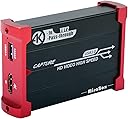


| ASIN | B07G84G7VF |
| AV Output | YUV |
| Antenna Location | Video Recording |
| Best Sellers Rank | 118,601 in Computers & Accessories ( See Top 100 in Computers & Accessories ) 169 in Internal TV Tuner & Video Capture Cards |
| Box Contents | Capture Card, HDMI Cable, USB Cable |
| Brand | Mirabox |
| Brand Name | Mirabox |
| Compatible Devices | PS4, PS5, Xbox One, Xbox 360, Wii U, DVD players, cameras, surveillance cameras, DSLR cameras, set-top boxes |
| Customer Reviews | 3.8 out of 5 stars 766 Reviews |
| Hardware Interface | USB 2.0, USB 3.0 |
| Hardware interface | USB 2.0, USB 3.0 |
| Item Dimensions | 9.5 x 6.3 x 2.2 centimetres |
| Item Weight | 118 Grams |
| Manufacturer | ARX TECH |
| Manufacturer Part Number | OP-0011 |
| Minimum System Requirements | Incomplete: USB 3.0, compatible with Linux, Mac OS, Windows 7/8/10, support for 1080p and 4K video |
| Model Name | Mirabox Capture Card |
| Model Number | MiraBox 321 HDMI Game Capture Card |
| Number of Items | 1 |
| Number of Packs | 1 |
| Operating System | Windows |
| Operating system | Windows |
| Other Special Features of the Product | Portable |
| Platform | Linux, Windows |
| Recommended uses for product | Video Recording |
| Special feature | Portable |
| Tuner Type | numérique |
| UPC | 650434552899 |
| Unit Count | 1.0 count |
| Video Capture Resolution | 1080p, 4K |
| Video capture resolution | 1080p , 4K |
J**N
Works perfectly with Sony A6XXX
Bought during the lightning sale for around £60. Truth be told, I wasn't expecting anything compared to something as revered as an Elgato but I was pleasantly surprised. It's as plug and play as it gets, USB3 and HDMI into the Mirabox and everything just starts working. You can use the low-ish latency HDMI out for capturing consoles or other devices but it's not absolutely necessary. In my case I wanted a secondary capture card for my Sony A6100. Silky smooth 1080p60 footage, colours look decent; Basically you'll be the envy of your zoom calls when you show up with your fancy bokehlicious HD webcam.
S**N
Does what they say it does
This is the first game capture device I have bought so I couldn't really compare it to any others. I bought it because it was cheaper than the Elgato's and it had good reviews. Upon using this device it worked as soon as a plugged it into my PC via USB, however, getting the audio set up wasn't as straightforward. I bought this device to stream from my PS4 to Streamlabs OBS, it took me around 2 days of fiddling to finally work out how to record the in-game audio at the same time as listening to the audio as i was playing the game. Anyway, long story short, and I got there in the end. I haven't actually streamed using the Mirabox yet, but everything is set up correctly on Streamlabs OBS now, so I'm happy with this product and I would recommend as a cheaper alternative to the more expensive Elgato's.
J**Y
A good option for XBOX gamers to record or stream.
Even on the new XBOX One X I have found it almost impossible to do reliable recording or streaming. I use the Mirabox with Streamlabs OBS and it has been excellent. I would recommend one of these without reservation.
M**B
Do not buy for XBox gaming
Despite trying for a couple of weeks, we have been unable to obtain 1080p60 resolution despite choosing the appropriate resolution settings on the device and using the USB 3.0 cable as instructed. The highest resolution obtained is 420p. The sound wouldn’t work, which seems to be a common complaint. The specs for the XBox and Mac Laptop we use were appropriate to support this device. Description of device doesn’t match what it actually does. Have returned as it was a waste of money.
M**.
Decent
Overall it’s a decent capture card but it heats up quick!
T**A
Simple but so effective
Why do I need to buy a webcam when I have a Sony X70 camcorder. This capture device is the definition of plug and play. I plugged my Sony X70 into it via HDMI. It then plugged into my laptop via USB. Skype, Zoom, Microsoft Teams saw it instantly and looks amazing. Also, the device is powered via USB so no external power adaptor which my office is frankly full of. Fantastic product!!!!
P**N
Perfect for Youtube and streaming
This Mirabox capture card does exactly as per specification but be aware if your computer is slow, or has no real graphic card or again low memory it will always record in the resolution it can catch up with. We have recorded many streams at full HD 1920x1080 at 30 fps with no issues. Like all dongles, if your computer is too slow, the resolution will be lower or it will drop frames. This is not devices fault but the computers.
C**T
Expensive, but works well
Plug it in, and all your apps are made aware that you have a new camera feed, so configuration in OBS/Skype/Zoom etc is not required - just click on the new name, and it works, first time, every time I cannot understand why it is so expensive, however
R**Y
Une carte peu chère qui fait le job
Une petite carte peu chère qui fait son boulot pour streamer. On regrettera juste qu'elle ne permet que le 30 FPS au mieux, rendant la diffusion de certains type de jeu comme les jeux de combat moins agréable à suivre. Mais pour son prix elle vaut le coup.
C**O
Muy importante y positivo: envía video sin comprimir
Esta capturadora me ha sorprendido porque, a diferencia de otras de este rango de precios, esta permite seleccionar fuente de video sin compresión, por ejemplo en OBS - Open Broadcaster -, lo cual significa que no tienes que sobrecargar la CPU del ordenador gestionando la descompresión de la imagen. Pondré un ejemplo concreto: esta capturadora, conectada a un MacBook Pro 2017, si me pongo a capturar una fuente cualquiera HDMI (por ejemplo, una cámara réflex Canon), a través de OBS, la CPU del Mac se pone a consumir un 50% en el proceso VTDecoderXPCService. Esto ocurre porque, por defecto, la capturadora envía la imagen a través del protocolo UVC como video comprimido por MJPEG, lo que obliga a la CPU del ordenador a descomprimir la imagen en tiempo real. Sin embargo, modificando la configuración por defecto de la fuente de video OBS, y seleccionando YUV, ya no aparece el proceso VTDecoderXPCService consumiendo CPU y todo funciona mucho mejor. Tengo otras capturadoras más baratas ... pero también más caras (por ejemplo, Atem mini), que no soportan este modo (sólo saben enviar video comprimido por MJPEG) Así que estoy satisfecho con la compra, y la recomiendo.
A**M
Red-shift dell'output HDMI con cavo da HDMI a DVI-I (ingresso di un vecchio monitor EIZO)
Con un monitor Eizo (ingresso DVI-I) di qualche anno fa collegato sulla porta OUT tramite un cavo HDMI -> DVI-I il segnale shifta verso il rosso/violetto come si vede nella foto. Puo' essere tranquillamente un problema del cavo HDMI->DVI-I. Tale problema non si presenta usando una Elgato 60HD S+ dove i colori sul monitor EIZO appaiono normali. Inviando il segnale HDMI, in uscita, verso un monitor AOC con ingresso HDMI i colori sono normali. L'immagine acquisita con OBS passando per il cavo USB si presenta con i colori normali. Immediatamente riconosciuta da Windows e utilizzabile in OBS (nel creare la "fonte" bisogna prima specificare un nome/etichetta desiderato/a e poi OBS presenta una lista di sorgenti tra cui si puo' selezionare la Mirabox ) In generale il prodotto pare più che buono ma visito che non riesco ad utilizzarlo con i miei monitor EIZO penso di restituirlo. Non l'ho testato per acquizioni lunghe, ci ho solo fatto un setup iniziale.
M**K
Günstiger Einstieg ins Streamen und HDMI Recording
Vorweg: Ich habe keinerlei Erfahrungen mit Streaming Hardware. Ich hatte eine bezahlbare Box gesucht, mit der ich HDMI Ausgaben beliebiger Geräte aufnehmen kann, um sie dann weiter zu verarbeiten. Der MiraBox liegen nur 2 Zettel bei, die als Anleitung herhalten müssen. Für jemanden wie mich, der sich noch nie mit dem Thema beschäftigt hat, war das ziemlich mager. Aber man wächst ja mit seinen Aufgaben :-) Die MiraBox kommt in einem Alu-Gehäuse und macht dadurch schon einen wertigen Eindruck. Sie wird mit dem PC über USB 3.0 verbunden und empfängt das Bildsignal anderer Geräte über einen HDMI-Eingang. Sie verfügt zwar auch über einen HDMI-Ausgang, um das Signal durchzuschleifen, aber den habe ich letztendlich nicht genutzt, sondern stattdessen einen HDMI-Splitter eingesetzt. Der Grund dafür war, dass die MiraBox das Bildsignal nur durchschleift, wenn sie an USB 3.0 angeschlossen ist. Ein eigenes Netzteil besitzt sie nicht. Ausserdem wird sie im Betrieb nach einiger Zeit relativ heiss. Durch den Splitter kann ich die Box vom Strom nehmen, wenn ich nichts aufnehmen will und der Monitor zeigt dann trotzdem ein Bild an. Die MiraBox wird unter Windows beim Anschluss der USB Schnittstelle automatisch als DirectShow Gerät eingebunden. Treiber sind nicht notwendig. Also im Prinzip wie eine am PC angeschlossene Webcam. Den Stream kann man dann mit diversen Programmen anzeigen, weiter streamen, oder lokal abspeichern lassen. Zuerst hab ich das ganze mit VLC getestet. Ich habe zwar alles nach längerer Fummelei hinbekommen, aber ich kann VLC nicht für diesen Job empfehlen. VLC ist zu kompliziert zu konfigurieren und ausserdem hat es bei mir immer erst den kompletten Stream unkomprimiert auf der Platte abgelegt, bevor er dann in H264 gewandelt wurde. Durch den unkomprimierten Stream kommen bei Full HD mit 60 fps schnell einige Gigabytes pro Minute zusammen... Glücklich wurde ich dann mit dem ebenfalls kostenlosen OBS Studio. Darin konnte ich relativ leicht alles korrekt einrichten und es auch so konfigurieren, dass Video und Audio von der MiraBox direkt durch NVenc on the fly in H264 gewandelt wurde und nur die komprimiert Datei (FLV Format) auf der Platte landete. Das Bild der MiraBox entspricht nicht 100% dem Originalbild. Man muss über den Eigenschaftsdialog der Box noch Schärfe, Helligkeit und Farbsättigung korrigieren, bis das Ergebnis halbwegs so aussieht, wie von der Originalquelle. Getestet habe ich mit einer Nintendo Switch und auch mit dem Signal einer Kabelfernseh-Box. Am Anfang gab es auch regelmässige Ruckler im Bild, aber die verschwanden, sobald ich die fps Rate korrekt eingestellt hatte. Der Ton kommt über eine weitere DirectShow Quelle, die man als Tonquelle im OBS Studio einstellt. Man kann aber natürlich auch weitere Bild und Tonquellen wie z.B. das eigene Mikro oder eine Webcam mit in den Stream mixen. Bisher habe ich immer nur einen 2 Kanal Ton von der MiraBox bekommen. Aber das kann auch an meiner Testumgebung liegen, die auch nur 2 Lautsprechen bzw einen Stereo-Fernseher besitzt. Die Bildqualität der MiraBox ist fürs streamen oder zum aufnehmen auf jeden Fall in Ordnung. Für den Preis gibt es meiner Meinung nach nichts vergleichbares auf dem Markt. Für unter 100 Euro vergebe ich deshalb volle Punkte.
K**R
Guter Vergleich zu Elgato Cam Link 4k
Ich habe das Produkt benutzt um meine Sony Alpha 5100 Kamera (1080p) über HDMI als Webcam zu benutzen. Das Gerät war jetzt mehrmals über 9 Monate im Einsatz und hat bisher keine Probleme beschert, trotz hoher Wärmeentwicklung. Nun habe ich mir aber den Elgato Cam Link 4k gekauft, welches der MiraBox gleichauf steht. Elgato wirk äußerlich deutlich eleganter und wertiger. Der größte Nachteil von der MiraBox ist allerdings, dass man diese immer neu zu OBS hinzufügen muss und nicht das bestehende "Videoaufnahmegerät" nutzen kann. Der größte Vorteil ist der recht günstige Preis, das Geräte bringt die erwartete Leistung. Vorteile MiraBox: + Bessere Bildqualität als Cam Link 4k + Passthrough für HDMI-Signal + geringe Latenz in OBS Neutral: o Qualität ok o keine extra Software Nachteile MiraBox: - wird deutlich warm, was aber bis jetzt kein Problem darstellte - Muss man jedes mal neu bei OBS hinzufügen - Anleitung etwas kompliziert, letztendlich aber bei den Standardeinstellungen in OBS lassen Vergleich zu Elgato Cam Link 4k: + Deutlich niedrigere Lantenz in OBS, leider keine Einstellung dazu gefunden. + Billiger als Cam Link o beide Geräte wurden auch ohne OBS als Webcam erkannt - wird deutlich wärmer - Cam Link einfacherer zu installieren
Trustpilot
1 month ago
1 week ago