Buy anything from 5,000+ international stores. One checkout price. No surprise fees. Join 2M+ shoppers on Desertcart.
Desertcart purchases this item on your behalf and handles shipping, customs, and support to SINGAPORE.
🚀 Elevate Your Printing Game!
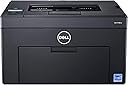
The Dell C1760NW Color Laser Printer delivers high-quality printing with a maximum resolution of 600 dpi for both black and white and color documents. With impressive print speeds of up to 15 ppm for black and white and 12 ppm for color, this compact printer is perfect for any professional workspace. Its 384 MHz processor and 128 MB RAM ensure efficient performance, making it a reliable choice for all your printing needs.


| ASIN | B00A2KFGF2 |
| Additional Printer Functions | Print Only |
| B&W Pages per Minute | 15 ppm |
| Best Sellers Rank | #318,547 in Office Products ( See Top 100 in Office Products ) #415 in Laser Computer Printers |
| Brand | Dell |
| Color | Black |
| Color Pages per Minute | 12 ppm |
| Compatible Devices | Laptops, PC |
| Connectivity Technology | USB, Wi-Fi |
| Control Method | Remote |
| Controller Type | USB, Wi-Fi |
| Customer Reviews | 3.7 out of 5 stars 551 Reviews |
| Dual-sided printing | Yes |
| Duplex | Automatic |
| Global Trade Identification Number | 00884116098201 |
| Hardware Interface | USB 2.0 |
| Ink Color | Cyan, Magenta, Yellow, Black |
| Item Weight | 28.7 Pounds |
| Manufacturer | Dell Printers |
| Maximum Copy Resolution Black and White | 600 dpi |
| Maximum Copy Resolution Color | 600 dpi |
| Maximum Copy Speed Black and White | 15 ppm |
| Maximum Media Size | Letter size (8.5 x 11 inches) |
| Maximum Print Resolution Black and White | 600 dpi |
| Maximum Sheet Capacity | 160 |
| Maximum print Resolution Color | 600 dpi |
| Model Name | C1760NW |
| Model Number | 9283J |
| Model Series | NW |
| Number of Drivers | 3 |
| Number of Ethernet Ports | 1 |
| Number of Trays | 2 |
| Other Special Features of the Product | Ethernet,Wireless |
| Paper Size | 8.5 inches |
| Power Consumption | 290 Watts |
| Print media | Envelopes, Paper (plain) |
| Printer Connectivity Type | USB, Wi-Fi |
| Printer Output Type | Color |
| Printer Type | Laser |
| Printing Technology | Laser |
| Processor Count | 1 |
| Resolution | 600 x 600 |
| Scanner Type | document |
| Special Feature | Ethernet,Wireless |
| Specific Uses For Product | Office |
| Total USB 2.0 Ports | 1 |
| Total Usb Ports | 1 |
| UPC | 884116098201 |
| Unit Count | 1.0 Count |
| Warranty Type | Limited Warranty |
| Wattage | 290 watts |
L**R
Satisfactory printer that can even work on Linux.
Satisfactory printer that can even work on Linux. MY OPINION I like this printer. It is worth the money I spent. I plan to keep it. When I purchase an electro-mechanical gizmo like this, I see it as a risk. I could receive a malfunctioning unit and get the evasive run-around from customer support. That could have happened to me, but I got lucky (so far). IMAGE QUALITY The image quality is by no means perfect. At least this is so for someone like me who knows very little about advanced image control techniques (such as adjusting my computer’s color profiles and so on) that may radically improve the image quality from this printer. Image problem 1: Printed images are darker than what I see on my video monitor. Printed images are also darker than a printed image of the same file, as printed by a professional art printing company (such as Fineartamerica.com). Image problem 2: Some shades of green get printed more similar to one another than they’re supposed to be. So far, I have only noticed this problem pertaining to greens. But shades of other colors may also exhibit this problem, for all I know and have yet to discover. Image problem 3: Glossy finish means the printed images will have restricted viewing angles on penalty of seeing too much glare from reflected light sources. But I suppose that’s just how it goes with all color laser/led printers. Image problem 4: If one does observe the print from a glaring angle, one can notice straight lines in the image, artifacts of the paper transport mechanisms. But these lines are not streaks, and vanish from sight when viewing the image without glare. To spite these problems, the image quality satisfies me. I only plan to print copies of my abstract art and promotional fliers on occasion. Color faithfulness is not a priority for this. And again, the color and brightness accuracy problems might be solvable by an expert in digital image management, which I’m not. PAPER HANDLING I’ve printed about 20 sheets so far, and one got a small “dog-ear” fold in a corner. I find that acceptable. INSTALLATION My unit is configured as a local network printer for about 10 computers throughout my apartment. It uses the wireless network interface. I was a bit baffled for awhile about how to connect the printer to the wifi. But printer setup menus tend to baffle me in general. The real mystery for me is always how to enter the wifi password or “key”. I have a vague memory of having to consult the internet to discover how to do it, as it seems I didn’t find any instructions in the documentation that came with the printer. Oh well. I got it done. Connecting the printer to my computers was an adventure, not because of any serious problems. But because I’m the curious sort who wants to see whether I can connect the printer to a variety of operating systems. I successfully connected the printer to Windows 7 (32 and 64), Windows XP (32), OSX 10.5, and OSX 10.4, Linux Ubuntu 14.4.04 (64), Linux LXLE (32). (No luck with Windows 98. Ha ha.) The real adventure was the Ubuntu and LXLE. That took research. ***Windows 7*** Using the installation CD, Windows 7 connections went well. Except, for some mysterious reason, on my apartment-mate’s Windows 7 computer. After the install wizard completed, no icon for the printer appeared in the printer’s window. So I had Windows do the installing instead of the CD. That worked. I refused to install the additional maintenance software, by un-checking all the boxes for such things in the final screen of the install wizard. I read somewhere that installing such stuff can set the printer to accept only proprietary Dell toner cartridges that are hella more expensive. ***Windows XP*** Ok. So, similarly with the Windows XP connections. Install CD does fine. ***OSX*** The OSX 10 connections require one to first run the install wizard on CD, then have OSX install the printer. Weird. The OSX installer on the Dell CD does not run automatically. You must open the CD, then open the folder appropriate to your version of OSX, then double click the .mpkg file to start that wizard. When that wizard completes, go to Apple Icon>System Preferences>Print & Fax. There you will find your printer listed. Click on it and install it for real. ***Linux*** There are no official Linux drivers for this Dell 1760nw. But since this Dell 1760nw is really just a re-packaged Xerox Phaser 6000B, the Linux drivers for that Xerox Phaser 6000B can be used to do the job. You just need to know the secrets of getting and installing that driver. I therefore present those secrets, as instructions for the absolute Linux nubie. The instructions are for Ubuntu, but other Debain derivatives like LXLE seem to work very similarly. >>>If you have a 64-bit Ubuntu:<<< Start the text input (command line) terminal by pressing Ctrl+Alt+T at the same time. A dark window will pop up and you will see the command line prompt there, a string of characters containing the user name and computer name, ending with something like “~$”. Copy the following line of text from this document by highlighting it and pressing Ctrl+C at the same time: sudo apt-get install libcupsimage2:i386 In the terminal window, paste the line at the terminal prompt by pressing Shift+Ctrl+V at the same time. You should see that text in the terminal now, just after the prompt. If not, try the previous steps again until you do. Now press Enter. The terminal should now ask you for your password. Type your password and then press Enter. Lines of text now appear in the terminal window, telling you it is doing things. Eventually it shows a message about the amount of killobites or megabites it will use and asks whether you wish to continue. Type the letter Y and press Enter. More lines of text appear until it shows the regular prompt again. Now there are two more command lines to copy from this document and paste at the terminal prompt. First, this one: sudo apt-get install lib32stdc++6 lib32z1 lib32ncurses5 lib32bz2-1.0 [Update: for Ubuntu 16.04, use: sudo apt-get install lib32stdc++6 lib32z1 lib32ncurses5] ...and press Enter. More lines of text… Again, answer “Y”. Then, this one: sudo service cups restart … and again press Enter. 2 or 3 lines of text and it returns to the regular prompt again. You can close the terminal window now. Proceed to follow all the instructions in the 32-bit section below. >>>If you have a 32-bit Ubuntu:<<< Use your web browser (such as FireFox) to go to the following web page: [Amazon deleted the link from this review. So if you need it, contact me.] Click on the link that says: Linux CUPS DEB print driver ...because this is the Linux driver “package” file. On the page that loads, click the “accept” button to start the download. Using your file browser, navigate to the folder into which that driver package file was downloaded. It is called “6000_6010_deb_1.01_20110210.zip”. It is a compressed file that needs to be extracted. To extract it, Left-click the package file (or Right-click it if your left mouse button is your primary mouse button) to get the little “context” menu, then select and click “Extract Here”. This produces a new folder called “deb_1.01_20110210”. Open that folder. Now you see the actual driver package file called “xerox-phaser-6000-6010_1.0-1_i386.deb”. Double-click that package file. On Ubuntu systems, the Ubuntu Software Center window will now pop up. Wait for this window to display the information about the driver package. Then click the “Install” button. You will at some point [except for Ubuntu 16.04] see a warning message about the driver package being of “bad quality”. On this message window, click the button that says “Ignore and Install”. The warning message is irrelevant in this case. Near as I can tell, it has to do with Xerox not identifying the author of the driver in a way that complies with Ubuntu rules. In any case, use of this driver has been implicitly sanctioned by members of the Ubuntu community forum who know about the warning. If you are asked for your password, type it in and click the “Authenticate” button. The Ubuntu Software Center program may or may not give you obvious confirmation that the driver package has been installed, other than the little “progress bar” completing and vanishing. In fact, after installation, the “Install” button may remain clickable, as if you have not really installed it. That's ok. Now you can shut the Ubuntu Software Center window. Now open the System Settings window (by clicking the side-bar icon of the cog with the red-handled wrench superimposed on it). In the middle section called “Hardware”, click on the “Printers” icon. Then click the fat, green plus symbol to add a printer. The “Select Device” window will pop up. Click on the list item that says something like “Dell C1760nw Color ...” to highlight-select it. If your C1760nw is a network printer, then click on the list item that says “Network Printer” first, wait for the sub list to appear, then click on “Dell C1760nw Color...” to highlight-select it. Then click the “Forward” button. A window will pop up saying it is “Searching for drivers.” It will vanish soon because it can't find any drivers automatically. Then the “Choose Driver” window appears. It gives you the opportunity to pick a driver from a database, which is presented as a double level list. The first level is the manufacturer, or what it calls “Makes”. Scroll down to the bottom and click on “Xerox” and click on the “Forward” button. The second level is the “Models”. Pick “Phaser 6000b” (the “b” may be capitalized) and click on the “Forward” button. If “Phaser 6000b” is not on that list, then something went wrong with the installation of the driver package. Try repeating that part and then see if it gets on the list. Now a “Describe Printer” window pops up, allowing you to name the printer as you please. Do so, or not, and then click the “Apply” button. (Note that it won't let you put spaces in the name. But you can use underscores to represent spaces, as most Linux geeks do.) If successful, the process will notify you of the success by showing you a printer properties window that has, among other things, a button on it you can click to get a test page. Go ahead and click it. Retrieve the test page. It is now installed.
E**G
It printed nice for a while and it was cheap. Lots more to hate.
It's not that this printer doesn't have any virtues. It prints beautifully, and it is easy to find [warranty-voiding] aftermarket toner that is dirt cheap, and the printer itself is very affordable. But beautiful prints and aftermarket ink/toner is a given for nearly any new printer, and the negatives far outweigh the positives. Here's that Bad: 1. Zero ability to print heavier weight paper. If you ever want to print on card stock or anything like that, forget it. 2. Wireless capability is there, but the set up is not for the faint of heart. If I didn't have a job working with computers, I'd have never been able to get it connected. The instructions are more what you'd call "guidelines." It was a cumbersome, time consuming, mind numbing, head banging, trial and error process to get it connected. Once I got it to work wirelessly, the connection was fragile at best. And within days, it seemed to decide that it didn't want to be wireless compatible anymore. I never got it to connect wirelessly again, and resigned myself to using the USB connection. In 2016 when I bought it, this is inexcusable. 3. After only a year, I got the dreaded error codes that you can find in the troubleshooting forums - the ones that poor unfortunate souls go to as a last resort. The answer is to call customer service. Their answer is that it's time for a new printer. Again, this is utterly inexcusable. The fact that it can produce nice looking prints does not earn it any more stars. That's it's job, it's a minimum expectation. It would earn more stars by having more features, more utility, having existing features work at least as per instructions, and by not getting a catastrophic error code while it is still young. This printer has no features, no utility, existing features (wifi) do not work, or are very difficult to get to work, and it dies young. For me, this is a total fail. Spend $50-100 more and get some utility and longevity out of your printer!
D**C
This printer does everything better and more efficiently.
This is an awesome home office color laser. I have been waiting a long time for a color laser this size to be affordable and am bummed that I waited as long as I did to migrate back to laser from inkjet. "Ef" Epson and other inkjet mfgr's who monetize you through overpriced ink and firmware updates designed to bork your ink and make you buy more. Also, while I'm at it, EF smeared page edges, buying overpriced "heavy stock" to prevent smearing, wet, curled pages, perpetual streaks, head cleaning, "cartridges no recognized"... EF INKJETS! This printer does everything better and more efficiently. I am utterly impressed with the size (small), price, speed, noise levels and quality of prints. Same quality as my multi-thousand dollar business class color laser at work that fills half a room. Pros: - price - size - low noise - clean, crisp paper (as opposed to curled up wet sheets from an inkjet) - cartridge life/price (aftermarket replacements available) - quick start-up - flawless Wi-Fi performance - 150 page paper handler - can use regular, cheap copy stock Cons: - overall print speed slow for a laser (still much better than inkjet) - awkward single-sheet feeder for envelopes, labels, etc. - not multifunction (but with phone-based scanners and print-to-Wi-Fi, who cares) Compared to an inkjet this printer is a total win. Same price or less, faster, cleaner prints with no smeared edges, streaking or curled pages. I bought this coming from a top of the line Epson XP-610 and I would never EVER go back. After spending $40 for ink and then having a forced firmware update deliberately kill the cartridges less than a week later I can honestly say Epson made an enemy for life. Compared to other color lasers in this class, the Samsung seems to get better reviews, but is also more than double the price. Thanks, but no thanks. This is plenty good for everything I need to do in my home office. I have had zero issues with this printer. One of the best purchases I have made for my home office.
B**L
Great printing, finicky set up.
I will start by saying the print quality is everything I expected from a consumer grade laser printer. I think it is good for making 10's of prints a day but probably not 100's. If I could stop here I would have given 5/5 stars. Setup: If you have a Windows PC you are sitting pretty, and I got WiFi to work with very little fuss using a USB cable to transfer the settings. That was using my work Laptop however, and this is where the printer loses a star. Alternate Setup: I only have Linux and Mac at home and I love a challenge so I reset to factory condition and tried again. (Aside to any Linux folks, the Xerox 6000B driver does run this printer quite well but is only x86) So the Dell driver will install, but the WiFI install program does not appear to work with Yosemite. The Mac install gets real at this point if you want WiFi printing. The easiest path to install WiFi without Windows appears to be connecting the printer to Ethernet using a cable, finding the printer's IP address, and then using a web browser to configure the printer. (Many printers have an internal web page for configuring settings, just type the IP address of your printer into your favorite web browser). Using the web page was as easy as using the windows set up and once that was done I could remove the Ethernet cable and had a functioning WiFi printer; that I now configure from it's internal web page. Pros: Printing speed and quality, reasonably priced aftermaket toners, works well on Linux. Cons: The setup is a bit tricky if you are not using Windows, but it is not impossible. Recommended: Yes, I do recommend this printer to people. But it is not for people who don't have windows and want something that "just works".
G**Y
A very good, inexpensive color LED printer
I got this printer to have a reliable color printer that could easily be accessed by family members throughout the house. I am always nervous about setting up new hardware, but the physical setup went very quickly and easily and the software installation went smoothly for the first computer. Because some of the instructions in the software installation are a bit unclear, it took us a couple of tries to get it installed on the next computer, but one we figured out the combination, everything was fine. Overall, the setup and installation took less time than I expected to spend. The quality of the prints is very good, if anything they are slightly better than I had expected. Some people have commented on noise levels, but I have this printer located in my den next to my mono laser printer, within reach of my desk, and the printer noise levels are not objectionable at all (at least to me) and certainly no worse than the other printer. When sending print jobs wirelessly, it takes the printer a little time to wake up and do the print, but no worse than I would expect. And the page speed meet our needs for home printing with multiple users accessing the printer sporadically. (Print speed might be a stretch in a busy multi-user office environment.) We have only had it in operation for about 3 weeks but it seems to perform as expected. (For those who remember televised coverage of manned space flight, "operation is nominal." In other words, it works like it is supposed to work.) And we managed to catch this printer on a very good deal, for considerably less money than I had originally expected to spend. Another bonus. I would recommend this printer to my friends. Now if I can convince my boss that I should have one like this on my desk at work ...
T**Y
What a deal! Low cost toner too!
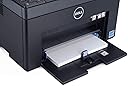
We've been through TWO Brother Color Laser printers. One that cost almost $1000. Both of them bombed pretty quickly. We spent $150 each replacing the drum units, around $80 PER COLOR for toner, and the end result is a streaky and ghosting mess. We searched and performed every known fix we could find and nothing would fix it. After thousands of dollars in drums and toner, I've had enough. Especially with Brother. So I checked this one out. It was very inexpensive, and I researched ahead of time how much the toner was (a 4 color set was 1/2 the price of a single Brother color! Less than $30 for 4 colors). Was skeptical, but I'm now in about 300-400 full color copies and it is near perfect! Someone else mentioned trouble setting up. We're actually using Ethernet instead of WiFi, so we didn't have to hook it up to USB first. We simply plugged in the Ethernet cable, and the software found it almost immediately and we were done. There IS a Wifi WPS button right on the thing, so maybe that would work if you didn't want to connect it to your computer first? The size is fairly small and very square which I like. Not a lot of things protruding that can break off (did I mention that on our $1000 Brother, the feed tray broke off in a matter of a few weeks?). The paper tray IS a little flimsy, and I would have liked to have seen that tucked inside the main printer. Instead it sticks out exposed to dust, desk debris, etc. And you can't close the front door (as you see it in the picture above) with paper in the tray. Start-up is extremely quick. Almost seems like an inkjet where you can start it and print right away. No fans and cool to the touch everywhere except on the top where it's slightly warm. It does go to sleep quickly which I guess is a good thing. The toner cartridges are actually mounted on the right side of the printer. Very unusual. It IS kind of a minor annoyance depending on where you put the printer. You need access to the front of course, and with the carts on the side, you'll inevitably need to open the side panel, so if you put the printer in a spot where you can't get to the side, you'll need to move the thing around to get to it. And the weirdest looking toner cartridges I've ever seen! But really simple to insert and replace. They just click in.and out with no mess. The start cartridges that came with it are almost all done for. We've replaced the yellow and cyan about 100 copies ago. We're using non-OEM cartridges and there is ZERO difference in color. If there are any negatives, I'd say that it's a slow one. Compared to the Brother printers, 5 copies would come out one after another. This one spits out 1, then there is like a 10-15 second pause, then another. And it spits out slow. But for us, this didn't cause a single bit of inconvenience. The other is that the output has a slightly "waxy" appearance. If you remember when color copiers first appeared at copy centers, they had that waxy, shiny appearance. It's not as bad as those old days, but if you're printing promotional things like flyers or something like that, I don't know if it would cut the mustard. There is a slight sheen. Maybe I'm exaggerating it. For us, again no problem whatsoever. I'm almost tempted to buy another for backup. With my personal horror story with the Brother printers, and what I've read here with HP, I'm thrilled I finally found something I don't have to mess with and spend ridiculous amounts of money on.
E**N
I was disappointed. This Dell is lightweight
Initially bought this printer on sale here to replace my broken Dell 2130CN printer, and I have to say, I was disappointed. This Dell is lightweight, plasticky, and flimsy.. and the output leaves a lot to be desired. Nothing like the 2130Cn which feels like a robust, heavy-duty industrial machine next to it. About the output: Text is fine, but graphics and especially photo output is simply unacceptable. Yes, these are not meant to be photo printers (get an Inkjet), but any color laser printer should be able to print out at least, decent to presentable photos. Well, it simply is not the case for the Dell. Streaks, blotches, faded blocky colors, etc... a far cry from the 2130CN, which, though at a different price class, delivered vibrant quality photos. Not only that, but the output is slow -- in fact, it seems slower than advertised. Additionally, there are very few options available to configure and tailor your print beyond your basic "portrait" vs "landscape", "color" vs "b&w", etc… Do yourself a favor and buy the HPM452nw instead. Especially at its current sale price ($149), it's a great value. In comparison, the HP M452nw feels like a solid and robust office laser printer with the output to match. Text is crisp, graphics and colors are vibrant and photo output is great and a match for my older 2130CN output. There MANY output, paper, color, photo, ink, etc… output option whether you choose the HP or Windows print menu and the printing is snappy and quick. Setting up was a breeze with the provided software. WIFI setup was a breeze as well, along with the HPConnect account creation, etc… ADDITIONALLY, and this is huge, HP has a TRADE-IN PROMO until Dec. 31, 2016. They will give you up to $200 for your old (working or not) printer if you buy a new HP Printer. [...] They took in my 5-year old, no longer working Dell 2130CN for a $75 trade-in, which means that I only paid $75 for this HP M452nw. Can't beat that. HP Laserjet Pro M452nw Wireless Color Printer, (CF388A) This is my first HP printer and I will most likely keep on buying HP printers from now on. Disappointed in the Dell and have to return it.
D**N
Very Disappointing Setup Experience and More
Seriously, Dell? This is the best you can do? How are the mighty fallen. First of all, the printer is significantly smaller and lighter than my last Dell laser. It looks great with the front paper-loading door closed -- nice and clean. So enjoy it for a few seconds before loading paper because once paper is loaded, the door has to stay open. Yes, you read that correctly. Once you load normal, letter-size paper (or longer) you cannot close the door. It sticks out a good 4 inches, just collecting dust on the top sheet (dust, hair, etc which will of course be pulled into the printer the next time you print, fouling up the works) and waiting to be snapped off by casual passers-by. Who engineered this thing? Ridiculous. Now the setup. While there are lots of "Very Important Information" sheets and booklets and inserts and what-have-you included, none of it is actually important at all. What's important is setting up the printer, loading paper, and connecting to it to print. On all of these points, you're pretty much on your own. I've got about 30 years software development and IT experience, so I was able to make it work. Good luck, laymen! If you're able to find the WiFi setup menu, find and select your network, and laboriously enter your passphrase one character at a time, using up/down arrows (super fun!), you'll enjoy helpful prompts like "recycle your printer to save settings". Ummm ... OK, I'll bite. Is there a button or menu selection somewhere to do that? Or do you mean that I should power it off and then back on? But if I do that and it's *not* what you meant, I risk losing the 10 minutes it took me to enter my passphrase with those charming up/down arrows. Or should I just take this piece of crap to the dump and *literally* recycle it. Ah, well. "The valiant taste of death but once." Off and back on it is, and it appears to have worked. BTW, a configuration article on Dell's online support site suggests that you "press the WPS (Wi-Fi Protected Setup) button", but ... wait for it ... there *IS* not WPS button! There's a WPS selection in one of the menus, which I assume is what you'd select, but by this point I had decided just to go the manual setup route. Dell, you suck. Now it's time to load the paper ... and discover after a lot of trial and error (and pulling and prodding and cursing) that the door won't close when there's paper loaded. Again, Dell, you suck. No mention of this in the "very important documents" (or in the user's manual that I finally looked up on Dell's support site). I wouldn't have ordered this thing, if that had been honestly made clear. If you can get past all this, the printer seems fine. It prints. The prints look nice. The WiFi works. But that's all table stakes. If you sell a WiFi laser printer that doesn't print or that makes crappy prints or that doesn't work over WiFi, you're not going to be around long. What's really important -- what DIFFERENTIATES you from all the other WiFi laser printer makers -- is the experience of setting up and using your printer. At this, Dell fails miserably and inexcusably. After years and years, multiple laptops, desktops, monitors, printers, etc, this will be my last Dell purchase. I've had enough.
Trustpilot
1 day ago
2 weeks ago