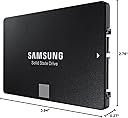
🚀 Upgrade your workflow — speed, security, and stamina in one sleek SSD!
The Samsung SSD 860 EVO 1TB is a high-performance 2.5-inch SATA III internal solid-state drive featuring cutting-edge V-NAND technology, delivering sequential read speeds up to 550MB/s and write speeds up to 520MB/s. It offers robust AES 256-bit hardware encryption, exceptional endurance with 1.5 million hours MTBF, and broad OS compatibility, making it the go-to upgrade for professionals seeking reliable, fast, and secure storage.


| ASIN | B078DPCY3T |
| Additional Features | Portable |
| Best Sellers Rank | #65 in Internal Solid State Drives |
| Brand | Samsung |
| Built-In Media | 2.5" (7mm) SATA III (6Gb/s) SSD & User Manual (All Other Cables, Screws, Brackets Not Included). |
| Cache Memory Installed Size | 1 |
| Color | Black |
| Compatible Devices | PC, Laptop, Desktop |
| Connectivity Technology | SATA |
| Customer Package Type | Standard Packaging |
| Customer Reviews | 4.8 out of 5 stars 76,836 Reviews |
| Data Transfer Rate | 78 Gigabits Per Second |
| Digital Storage Capacity | 1 TB |
| Enclosure Material | V-Nand |
| Form Factor | 2.5-inch |
| Global Trade Identification Number | 00887276232294 |
| Hard Disk Description | Sequential read speeds of up to 550 MB/s and sequential write speeds of up to 520 MB/s, making it ideal for storing and rendering large format files such as 4K video and 3D data. |
| Hard Disk Form Factor | 2.5 Inches |
| Hard Disk Interface | SATA 6 GB/s |
| Hard-Drive Size | 1 TB |
| Hardware Connectivity | SATA 6.0 Gb/s |
| Installation Type | Screw In |
| Item Dimensions L x W x Thickness | 3.94"L x 2.76"W x 0.27"Th |
| Item Height | 0.27 inches |
| Item Type Name | Samsung 860 EVO 1TB 2.5 Inch SATA III Internal SSD (MZ-76E1T0B/AM) |
| Item Weight | 51 Grams |
| Manufacturer | Samsung Electronics DAV |
| Media Speed | 520 megabits_per_second |
| Model Name | 860 EVO |
| Model Number | 896RC |
| Number of Items | 1 |
| Specific Uses For Product | personal, gaming, business |
| UPC | 887276232294 |
| Unit Count | 1.0 Count |
| Warranty Description | 5 Year |
J**I
Easy to clone and install
I have an older ASUS laptop that was given to me by someone who purchased a new HP. This unit had only 4GB RAM and a 500GB spinning-hard-drive. So I upgraded RAM to 8GB and bought this Samsung 860 EVO 500GB SSD to replace the old spinning-drive. This SSD arrived and I needed to buy a $7 USB-to-SATA III cable here on Amazon so I could clone the old hard drive to it. There is a lot of chatter on here about people wondering about the best ways to clone existing drives onto these SSD devices. In my case, I decided the simplest thing to do was to use something I could boot from a USB, so it wouldn't matter what operating system was on the old drive I could clone anything. So I downloaded Tuxboot and Clonezilla and ran it to install onto a USB. Super-simple process and I was ready to roll. I then hooked up the SATA end of the cable to the SSD and the other to an open USB port on the laptop, stuck the bootable USB I had just made into another and turned on power. Booted right up to Clonezilla, hit enter through every default, ensured it was using the 500GB spinning-drive for its source and the new 500GB SSD for the target, and within about a minute it was off and running. You are presented with a lot of options. I chose the simplest, device-to-device rather than doing the source-to-image, then image-to-target. Process took around 2.5 hours and then I shut down, removed the old drive from its caddy and replaced it with the SSD, hit the power switch and the system immediately booted right up to where I had left off before I cloned it! There are a lot of ways you can clone existing drives to these SSD's. You might even want to just fresh-install your system onto one of these SSD's and that's fine. I didn't want to take the time to do that. But for me, using that $7 cable I bought here on Amazon, with the Samsung EVO 860 SSD I bought here on Amazon, and free Clonezilla install-to-USB I was able to effortlessly clone the old drive to the SSD and boot right up with it without any issues whatsoever. I had zero issues. A few benefits from having gone through this: 1. I now know how to clone a laptop drive to an external drive 2. No more motor to spin a drive, so no more extra draw on the laptop's battery to keep one running 3. No more heat from a drive motor that's constantly running 4. Excellent performance and speed with this Samsung To benchmark it for you, the laptop originally took just over two minutes to boot up. After upgrading its memory from 4GB to 8GB boot time dropped a bit, to 1.5 minutes. But after replacing the hard-drive with this SSD boot time is now 30-32 seconds, from hitting the power-switch to login. And everything else on the system is much, much faster without the extra seek times and slowness of that old spinning drive. Time will tell but so far this Samsung is functioning great, was easy to clone to, Clonezilla recognized it right away (as did Tuxboot), and it booted in my system the first time after the cloning was done. And this thing is just super-fast. Plus it's a Samsung EVO. From all I've heard and read, these are pretty reliable devices with a reliability of something like 1.5 MILLION hours. That's 62,500 days or about 171 years! Try getting that kind of reliability from a spinning hard-drive! Bottom line is these are known to be great devices. There are duds out there but by-and-large it's hard to beat a Samsung EVO device for its price-point, reliability, and performance. That's why I spent the extra $$ rather than going to a cheaper, edge-brand type SSD. I have both old and new equipment and my older stuff recognized and worked with it just fine and so far it's a screamer. I highly recommend.
T**H
Outstanding Performance and Storage Capacity: Samsung SSD 860 EVO 4TB Review
I recently upgraded my computer's storage with the Samsung SSD 860 EVO 4TB 2.5 Inch SATA III Internal SSD (MZ-76E4T0B/AM), and I couldn't be happier with the performance and reliability it offers. As someone who deals with large files daily, this SSD has been a game-changer for my workflow. **Blazing Fast Speed** The read and write speeds on this SSD are remarkable. I noticed an immediate improvement in my system's boot time and the speed at which applications load. Large file transfers, which used to take minutes, now complete in a matter of seconds. This SSD truly lives up to Samsung's reputation for speed and efficiency. **Generous Storage Capacity** With 4TB of storage, I no longer worry about running out of space. This is perfect for anyone with a vast collection of photos, videos, and other large files. The capacity allows me to store everything I need with room to spare for future needs. It's a great solution for both personal and professional use. **Easy Installation** Installing the Samsung 860 EVO was straightforward. It fits perfectly into the 2.5-inch drive bay in my desktop, and the included software made cloning my old drive a breeze. Even if you're not particularly tech-savvy, you'll find the process simple and quick. **Reliability and Endurance** One of the standout features of this SSD is its reliability. Samsung has a strong track record in the SSD market, and this model is no exception. With advanced data protection and impressive endurance ratings, I feel confident that my data is safe and the drive will last for years to come. **Value for Money** While the price might seem steep at first glance, the performance and storage capacity justify the investment. Compared to other SSDs in the market, the Samsung 860 EVO offers excellent value for the features it provides. **Final Thoughts** Overall, the Samsung SSD 860 EVO 4TB is an exceptional product that delivers on all fronts. Whether you're looking to speed up your system, need ample storage space, or want a reliable drive for your data, this SSD is a fantastic choice. I highly recommend it to anyone in need of a high-performance, high-capacity internal SSD.
A**R
Big boost to a 6-year-old laptop. Boot times and data access MUCH faster. Easy migration.
I have a 6-year-old laptop I bought in December 2012 (an HP Pavilion with a Core i5-3210M, 8GB RAM, NVDIA graphics with 2GB memory, and a 750GB HDD that was about 25GB from being full, which was probably the root of most of my performance problems). It was never screaming fast, but it has been a nice little workhorse that has allowed me to edit photos and video and be productive with MS Office for several years. When I upgraded to Windows 10 a couple years ago, I definitely saw significantly longer boot times than with the OEM Windows 7 install. And whenever Windows 10 would download system updates on its own (annoying) timetable, my PC would grind to a frustrating halt as the HDD would clock endlessly. I was considering buying a new laptop (I’d mostly abandoned the concept of “PC upgrades” many years ago because the technology changes so fast and new PCs have generally been affordable, and upgrades seemed like a waste of time and money). But all the reviews said installing an SSD would drastically improve performance, so I decided to install the Samsung EVO 1TB SSD -- and the hype was not wrong! My PC went from booting in 2-plus minutes to booting in about 15-20 seconds. MS Office programs now open almost immediately, and the Windows 10 Photos app, which always resulted in long grinds of my hard drive while accessing my thousands of photos and building thumbnails, now responds *so* much faster. Everything local is snappier and more responsive and more satisfying. I can now navigate my system with much more speed and ease. I had no idea just how much of a bottleneck my HDD truly was, and how much gain you could realize with an SSD (even a SATA one). The migration was surprisingly simple. I installed the Samsung data migration software (take note — this is a *different* program than the Samsung Magician software, which is useful only *after* you’ve migrated your data and installed the SSD), and it copied my system partition and C drive over to the new SSD. The process was pretty straightforward. It automatically made the decision to leave behind my long-useless OEM factory recovery partition and related HP_TOOLS partition, which was great, because I was planning on deleting them anyway. It automatically sized my new C partition to fit the larger SSD, since I was going up from 750GB to 1TB of total space. After copying, it instructed me to shut down the computer, swap out the drives, and restart. I did, and everything was right where I left it, but with much improved performance and boot times. I’ve decided to add an SSD to my 9-year-old first-generation Core i7 desktop computer as well. It’s still running, so why drop a grand when I can drop $150 to make it run so much better and increase my storage space to boot? (Note: I can’t comment on reliability as I’ve only had the drive installed for one day. But so far, so good.)
P**.
Great Product: Really Punched Up My Mac
I own a Late 2013 Mac 21.5". It took about 14 minutes to shut down and restart. It was even sluggish when just using a browser, so I decided to upgrade. I had videos to make and they were affected. I was a bit intimidated about the whole process, but I already possessed the tools and there were plenty of videos on YT to show me exactly what to do. I'd say the hardest thing was installing the software. As the videos say, you have to reformat the drive, partition the storage, and install the software. I was a bit unsure about all these things despite doing them in the past. That takes time and you need to know exactly what to do. I had a good backup I wanted to install but that did not complete overnight. So I started all over, erased everything, reinstalled OSX, and treated it like new Mac. I hand installed all the old software and transferred old documents via my external hard drive. Oddly, the Time Machine backup would have taken the entire day. I got the old software in a couple hours. The result is that this old Mac is just as fast as it was brand new, maybe even faster. Now it shuts downs in seconds and boots up from a complete shut-down in about 23 seconds. Brilliant! It can handle video production and mult-tasking no problem. Also, the fan probably rarely turns on because it's solid state. Side note, when I was inside I vacuumed the heck out of everything so it's clean. I'm waiting for the adhesive strips in the mail. All said, it's well worth upgrading for $54 than dropping $2K on a new Mac, IMHO. These things are built tough and you CAN add a SSD and RAM if you wanted too. Chances are, you'll just have to replace the SSD. So if you want to revive an old Mac desktop that it's on its way out anyhow, why not upgrade? Now you know why you see Refurbished macs like this selling for $750. That's a $500+ profit in many cases for something that takes only a few minutes to do. Get this SSD. It's blazing fast and quite a deal.
P**N
Good Samsung Quality
I bought this SSD (512 GB Samsung 860 EVO) to replace an older Samsung SSD that is over 10 years old. The old SSD was the Windows boot drive, so is the new one This review details the cloning and installation process. Essentially, you are going to clone / migrate the data (create an exact copy) of the old drive and apply it to the new drive. You may want to invest in an external SSD enclosure to help in the cloning process, I bought and used UGREEN External Hard Drive Enclosure Adapter USB 3.0 to SATA Hard Disk Case Housing for 2.5 Inch 9.5mm, from Amazon as well. It's about $10 but it will make your life easier AND once you're done, you can use it to house and use the old SSD (or any similar new or old SSD, as an external drive. So it's really useful! You may have read/ heard about problems some were having using the data migration that Samsung provides (Data Migration software available from Samsung website). I haven't tested or used this software so I will not comment on it. But I did download it and installed it (installation was problematic and got hung many times....upon googling, I discovered one must disable Windows Anti Ransomware protection (under Windows Security....) strange, but I disabled it and the installation worked. Don't forget to re e-enable the Ransomware protection when done!! So, assuming you have the SSD data enclosure, place the SSD inside it, connect to the PC using the included USB cable and you're ready to clone / migrate the data. Cloning Process: I used Macrium Reflect. You should really use the latest version, and it's not free anymore, but they offer a 30 day trial which will do the job. PS: The older versions seemed to have an issue with a fully updated Windows 10. Once Macrium Reflect is up and running, the FIRST THING you should do is create a Recovery Disk (find it under Other Tasks in the menu, and it's called Create Rescue Media). It's easy, just follow the prompts. Keep it aside just in a safe place, in case (this is useful as a Windows Recovery disk, which every one should have). There are videos on Youtube that show you what to do exactly when using Macrium Reflect, do watch them, they are easy and useful. But especially if your old drive / SSD and the new SSD are not the same size! Look for: How to Clone Windows from a Hard Disk to an M.2 SSD by a guy called ACCESS RANDOM. If the (old and new) drives are of different sizes you MUST watch: How to clone a disk drive using Macrium Reflect and resize the partition by a guy called Alex Kang. It has one step in that is essential to handling the different sizes issue. Both videos are excellent and walk you through each step. Once the cloning is done, remove your old SSD and install the new SSD in your PC (or laptop) using the same cables. Reboot the PC and test the drive for a few days. If you're completely happy and the system is stable, feel free to either place the old SSD in the external enclosure and use it any way you want or use the old SSD in your PC / laptop as extra storage (after erasing the old data). Speed: Any SSD is much faster than the fastest regular (spinning) hard drive. This SSD is fast but not the fastest on the market but it's perfect for booting Windows aka, as a boot drive, (Windows boots up in 10-20 seconds, depending on your PC). With this SSD I am surfing the web in less than 20 seconds from powering up. There are faster SSDs but gaining 2-3 seconds in Windows boot time is not really important to me. In closing, one final reminder: Do watch those videos!!
D**Y
Wowowowowowow!
I feel like I have a new laptop. I have a Lenovo ThinkPad Edge 431 with a Core i7-3632QM CPU @ 2.20GH processor and 8GB of RAM, running Windows 7 Professional, which were pretty good specs when I bought it five years ago. It has been a decent, reliable performer, but continuous software bloat has resulted in increasingly slow performance. I run maintenance utilities regularly and have a minimum of the normal “junk” that slows a PC down, but you can only make an old horse run so fast. Or so I thought. I downloaded a copy of HDTune to evaluate the hard drive, and was chagrined to learn how slow it was compared to state-of-the-art drives even though it was performing at its rated ability. It was time to try one of these new-fangled SSD’s, especially considering how inexpensive they’ve become. Whoa! My start-up time has decreased from an average of 3:20 to a mere 0:45, a decrease of 75 percent! Everything is much snappier and responsive, and programs load RIGHT NOW. What a change! The Windows Experience Index went from 5.9 (the lowest rating being the Primary Hard Disk score) to 6.5 (driven by the graphics, which is not a priority in a business laptop). The Primary Hard Drive score is now 7.9, which is the highest it can go. I didn’t realize when I ordered this that I would also need a USB adapter for a SATA drive to make the transfer, so that was a second Amazon order before I could start. I then downloaded the free transfer software from Samsung and it took about 45 minutes to transfer 360 GB of data from my HDD to the Samsung SSD. Swapping the drives was a piece of cake, although that would depend on what laptop you have. For my ThinkPad, it was a matter of removing three screws to remove the bottom cover, then four screws to remove the bracket holding the old hard drive, and then four more screws to take the HDD out of the bracket to make room for the SSD. Reassembly and the insertion of the eleven little screws took just a few minutes. I restarted my ThinkPad and it was as though nothing had changed…except it was FAST! When I ran MS Word 2010 it noticed a change in hardware and wanted to re-register with Microsoft automatically, so I let it do that, but that was the end of the install process. I cannot recommend this upgrade more highly to anyone who has a worthwhile laptop with the weakest link being the speed of the HDD. --------------------- Update 7/27/19: It has now been almost four months since I upgraded my ThinkPad with this product and my opinion has only gotten better. The replacement of the mechanical spinning HD with this SSD has increased my effective battery life tremendously. The SSD uses less energy, of course, but even more significant is that my PC's new ability to awake from sleep mode almost immediately allows me to set a much shorter time delay between inactivity and forced sleep mode. I'm also much less reluctant to deliberately put the ThinkPad into sleep mode because now it will start up again so quickly when I need it. If I'm sitting in a one hour meeting, my PC can easily go to sleep several times during that interval (and I don't mean only that the screen goes dark), and I get it to crank back up and log me in in just a few seconds with just a couple of slaps at the space bar. Awesome!! When plugged in, I used to leave my PC running all the time during the day even when it was unattended, because the startup time was so interminable and I didn't want to go through it more than once daily. Now I've gotten into the habit of putting it into sleep mode whenever I plan to be away from it for a while, just to save energy. If I plan to be gone for several hours, I'll even do a full shut down because, again, it's so easy to get it up and running again when I return. I also need to add that I upgraded to Windows 10 (which is still free, even though Microsoft keeps it a secret), which helps startup time even more. My old ThinkPad really zips along better than when it was new. Thanks, Samsung!
C**.
Samsung SSD 860 EVO Great Product, but do not use Computer HD Installation
I order the Samsung SSD 860 EVO to replace the Hard Drive in my old HP Pavilion Desktop. Want to avoid hard drive failure and having to reload all the OS and user software. I made the mistake of purchasing the $89 Computer "Hard Drive Installation - At Your Location" that Amazon had listed next to this product. Samsung SSD is great product. However; poor communications from the vendor and/or with Amazon caused problems. Vendor called 30 minutes before scheduled time to say he would be late. Then later supervisor called and asked what work was to be done. I told him over the phone. Then he sent an email that said they did not have software to install. I did not check my email since the had called my cell phone. No one showed up. I called Supervisor several times over 5 hours and always got his phone mail and no response. Called Amazon and complained about no show. Amazon called vendor and was told that they did not know what the job was and did not have Software to copy/clone hard drive. I went on line with Samsung and used chat to learn link to download the Samsung migration software and instructions on cloning the hard drive to SSD. Took 10 minutes to go to link and download Samsung migration SW. Used the cable and mounting bracket purchased with the Samsung SSD as recommended on Amazon webpage. Easy to perform. Took less than 2.5 hours to clone SSD following Samsung Chat instructions. I had 250GB on a 1 TB Sata drive. After swapping the Sata connectors to the newly clone SSD, I turned on desktop and it came up quickly with no problems. Lame excuse from vendor that they did not have software to transfer data (windows 7 data and user data) to the SSD. Said they would have to reschedule in a couple of days after acquiring software. Simple download from Samsung website. Wasted about six hours of my time, but the good part is Amazon cancelled the $89. My desktop is performing much faster with the SSD and with no problems detected.
L**H
Great, reliable and lasts for years!
Look, I'm a simple man and since I bought this SSD, it hasn't let me down ever since 2019. Good build quality, it has good SATA performance, all old PC will be able to support this getting mounted and its great value. 1TB is the minimum you should get nowaday, otherwise your storage capacity won't be enough. I'm still using it and it's still great 👍
TrustPilot
1天前
2 周前